









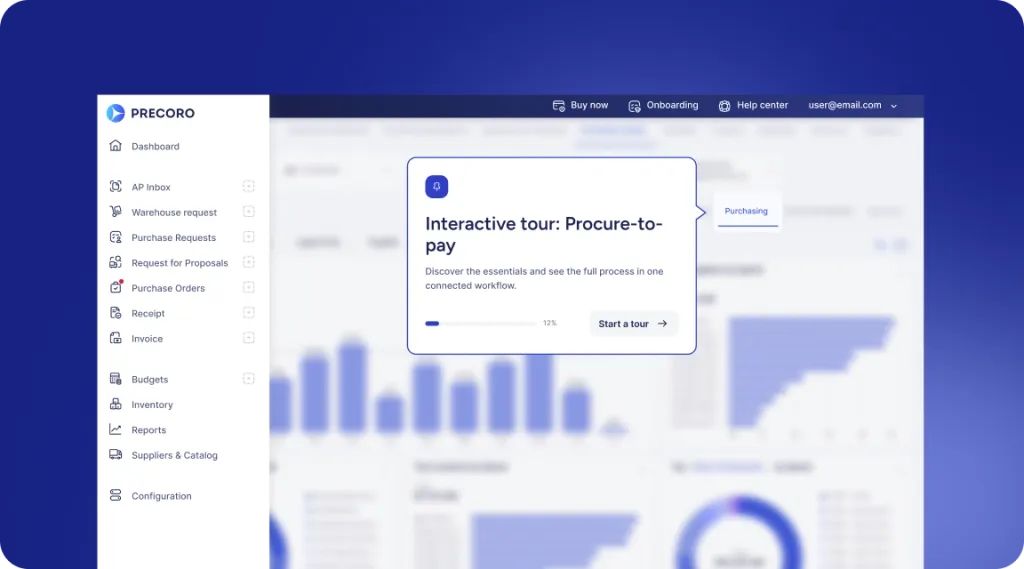
 Explore Precoro's features



















QuickBooks Online supports bill approval workflows through eligible US subscriptions. Start by separating three decisions: approving a purchase, approving the supplier’s bill, and releasing payment. Use native approvals if they cover your process. Consider a procurement integration if you need to connect bills with earlier purchasing decisions and proof of receipt.
Product scope: US QuickBooks Online and QuickBooks Bill Pay. Product documentation checked on November 6, 2026. Other countries and QuickBooks Desktop may have different features and requirements.
Can you approve bills in QuickBooks Online?
Yes, if your account has Bill Pay Elite. QuickBooks Online Essentials, Plus, and Advanced accounts with Elite get three bill roles. A bill clerk can add bills but can’t approve or pay them; a bill approver can approve bills but can’t pay them; a bill payer can view and pay bills but can’t add them. See Intuit’s user roles and access rights.
Before configuring anything, clarify which document and decision your team needs to approve.
| Approval | Question being answered | Example responsibility |
|---|---|---|
| Purchase approval | Should we commit to this expenditure? | Department budget owner |
| Bill approval | Does this supplier bill represent a valid charge we should accept? | Manager confirming the goods or services |
| Payment release approval | Should this payment be released? | Authorized finance approver |
| Customer invoice approval | Is the invoice we’re issuing to a customer correct? | Sales or accounts receivable reviewer |
A supplier sends an invoice to your business; your accounts payable (AP) team records the amount owed as a bill. A customer invoice is a different transaction: your business is requesting payment.
This matters if you’re searching for a “QuickBooks invoice approval workflow.” Guides to approving customer invoices don’t explain how supplier bill approvals work.
If you need authorization before placing an order, start with purchase order approval in QuickBooks Online. Bill review happens later, so it doesn’t prove the original purchase was authorized.
Which QuickBooks plans support bill approval workflows?
For US users, the relevant options are QuickBooks Online Advanced and Bill Pay Elite. The accounting and Bill Pay subscriptions are related, but check each one separately.
Intuit’s US Bill Pay page says Bill Pay Elite has been included with QuickBooks Online Advanced since August 1, 2026. You just need to activate it. Its product terms limit that offer to subscriptions bought directly through QuickBooks.com or QuickBooks Sales and exclude Simple Start from these approval workflows. Check eligibility if you subscribe through another channel.
| US subscription combination | Bill approval position | What to confirm |
|---|---|---|
| Essentials or Plus with Bill Pay Elite | Approval workflows available | Elite activation, permissions, and available user seats |
| QuickBooks Online Advanced | Approval workflows available; Elite is currently included under US terms | Activation and the workflows available in your account |
| Essentials or Plus with basic Bill Pay or Premium, without Advanced | These Bill Pay plans don’t include approval workflows | Whether upgrading or integrating fits your requirements |
| Simple Start | Excluded from the documented approval workflow offering | A suitable accounting plan before choosing an approval approach |
Don’t assume a plan with the same name outside the US includes the same features. Use your country’s documentation and account settings to confirm eligibility.
Before upgrading, list the people who need access and the decisions they will make. An upgrade only helps if those people can take part with the right permissions.
How do you set up a QuickBooks bill approval workflow?
Define the approval policy first, then configure the software to reflect it. These steps follow Intuit’s bill approval and payment release instructions; interface labels can change.
1. Assign the appropriate roles
As an admin, open Settings → Manage users → Add user and assign the relevant Bill Pay role. Invite each participant.
2. Open the approval template
Select the lightning-bolt workflow icon, choose Templates → Bill Multi-Condition Approval, and name the workflow.
3. Set the triggering conditions
Set amount, vendor, location, or combined conditions in When this happens.
4. Choose approvers and the sequence
Use Do this to select approvers. Choose a group rule (anyone, any two people, or everyone approves) and add sequential layers if needed. You can add up to 7 approvers per step and up to 5 sequential layers.
5. Configure notifications and other branches
Set up email notifications. Then add more condition and action blocks for bills that don’t meet your first conditions.
6. Save and submit a bill
Choose Save and enable, then Send for approval on a qualifying bill. If you select Close instead, the bill stays in “needs approval” status until someone sends it.
7. Check the result
Review the task and status. Unreviewed bills are automatically denied after 30 days.
Turn policy decisions into test cases
Spell out your rules before you open the setup screens. For example, decide whether a threshold includes the boundary amount, who reviews a bill for a particular location, and what should happen when no specific rule applies.
Write those decisions in a small test sheet before enabling the workflow for daily use. Include the bill details, expected approver, expected next action, and actual result. A test that only confirms an email arrived isn’t enough. The recipient also needs the right access and must understand what they’re being asked to approve.
Choose between group approval and sequential approval deliberately. Intuit describes approval groups and ordered chains in its Bill Pay workflow explanation. A group works when any of several authorized reviewers can sign off. An ordered chain works when one review depends on another.
For example, a department manager may confirm delivery before finance reviews an unusual charge. If both people click Approve without separate responsibilities, you add work without adding control.
How is payment release approval different from bill approval?
Bill approval confirms that the charge has passed the required review. Payment release authorizes sending the money. Intuit treats them as separate workflows.
The person who knows whether equipment arrived may not be the person authorized to release the payment. Likewise, the finance approver deciding when to pay may need the receiving manager’s confirmation first.
Define what each reviewer must establish. A useful division is:
- Bill preparer: checks the supplier document, dates, coding, and supporting information.
- Operational reviewer: confirms what was supplied and explains any discrepancy.
- Payment decision-maker: checks the proposed payment against the business’s payment policy and authorization limits.
These are suggested responsibilities. QuickBooks roles may not cover every action listed, so map them to the permissions in your subscription.
To configure the separate release step, open Templates → Set up bill payments release approval. Set amount or vendor conditions, choose an admin approver, and select Save and enable. Only admins can approve payment releases; see the setup instructions.
If you use a separate payment platform or banking process, document that handoff too. An approval in QuickBooks doesn’t show how a payment made outside QuickBooks was authorized.
When are native approvals enough, and when should you consider procurement integration?
Native approvals are a good fit when your main need is reviewing bills inside QuickBooks. A procurement integration makes sense when you also need to control how purchases are requested, authorized, ordered, and received.
Base the decision on the control you’re missing, not on how many approval steps you can add.
| Your operational requirement | Approach to evaluate | Question to resolve |
|---|---|---|
| Review bills and authorize payment within QuickBooks | Native bill and payment workflows | Can the available roles and rules implement your policy? |
| Authorize a purchase before placing an order | Purchase approval process | Where is the commitment approved and recorded? |
| Review a bill against an order and delivery evidence | Connected purchasing and invoice process | Can the reviewer see and resolve differences? |
| Coordinate purchasing across departments | Procurement workflow, with accounting integration where appropriate | Who owns requests, budgets, receiving, and exceptions? |
| Reduce repeated entry between existing procurement and accounting tools | Document integration | Which system creates each record, and what triggers export? |
Higher bill amounts alone aren’t a reason to add another platform. First test whether the native conditions, permissions, and approval structure satisfy the requirement.
At the same time, a tidy bill queue doesn’t answer every purchasing question. If managers approve expenditure only after the supplier has delivered, the business still needs to decide how purchases should be authorized earlier.
Precoro’s QuickBooks Online integration covers that broader process. It applies purchasing controls and matches invoices to purchase orders and receipts before approved transactions reach QuickBooks. Evaluate those capabilities against your actual purchasing documents and exceptions.
What does the difference look like in practice?
Here’s a hypothetical equipment purchase. The figures exclude tax and aren’t recommended approval thresholds or customer results.
A department orders ten monitors at $300 each: a $3,000 order. Eight arrive. The supplier still bills $3,000 for all ten. The goods received are worth $2,400, so $600 covers the two monitors that didn’t arrive.
The discrepancy needs a decision. It doesn’t automatically settle whether the supplier should issue a corrected invoice, deliver the remainder, or receive a partial payment. That depends on the supplier agreement and how finance treats the transaction.
Reviewing the bill in QuickBooks
With native approvals, the team needs to make sure the reviewer has the order, delivery evidence, and supplier correspondence needed to assess the bill.
The AP preparer records the document, the designated reviewer identifies the missing monitors, and the team resolves the discrepancy before the appropriate approval and payment decisions. Native routing assigns responsibility, but your process still has to get the evidence to the reviewer.
The practical test is simple: can someone unfamiliar with the email conversation understand why this bill is awaiting action?
Connecting the bill with procurement records
With connected procurement, the request, order, delivery evidence, and invoice review are in one place before the bill reaches QuickBooks.
For the same purchase, the receiving team records the eight delivered monitors. The invoice reviewer compares that evidence with the supplier’s charge. The person who owns the discrepancy follows up on the missing delivery or the agreed correction.
When evaluating Precoro, ask for this exact scenario to be demonstrated. Check how partial receipt is represented, how a difference is flagged under the configured matching rules, who resolves it, and which document ultimately reaches QuickBooks.
The real difference is where the evidence lives and who owns it. Both approaches still require a clear decision about the undelivered items.
How does bill approval work with Precoro and QuickBooks Online?
Precoro can export approved invoices to QuickBooks as bills. Its invoice integration guide also covers an option, enabled by Precoro Support, to export pending invoices. So decide which invoice status should trigger the export.
To export only approved invoices, choose the Approved Invoice document option in integration settings. The bill in QuickBooks then includes the supplier, due date, account or category, and a memo with a link to the Precoro invoice.
| Stage | Suggested ownership in an approval-before-export design |
|---|---|
| Purchase request and authorization | Requester and authorized purchasing approvers |
| Receipt confirmation | Person responsible for receiving goods or services |
| Invoice review | AP and designated operational approvers |
| Accounting handoff | Approved-invoice export to QuickBooks |
| Payment authorization | Finance team’s configured payment process |
Precoro supports QuickBooks Online Essentials, Plus, and Advanced. Essentials supports invoice integration only, and Simple Start isn’t supported. Confirm your document requirements before configuring the connection.
Decide where bills originate
For each transaction type, decide whether invoices enter through procurement or accounting. Define exceptions, such as bills that legitimately bypass a purchase order, and give them an owner.
Without that decision, one employee may enter a supplier document into accounting while another prepares it for export from procurement. Before you turn on the integration, agree on how the team checks whether a bill already exists.
Also decide whether any native QuickBooks approval remains necessary after the procurement review. A second review can make sense for a separate accounting or payment check. Repeating the same operational sign-off needs a clear reason.
Check data and status separately
Confirm that the destination bill contains the expected supplier, amounts, coding, and supporting reference. Then check the approval and payment states separately. A successful export shows the handoff worked. It doesn’t show that a payment was authorized or made.
Sync direction depends on the record type. Supplier details sync both ways, invoices go from Precoro to QuickBooks, and payments recorded in QuickBooks are imported into Precoro. Precoro’s integration FAQs cover which fields sync for each record. Check the data you plan to exchange before you go live.
How should you handle exceptions and test the workflow?
Assign an owner and a next action to each exception. The checks below are recommended practices, not automatic product features, so test them in your own account.
Bills outside the expected conditions
Test a bill below, at, and above each important threshold. Include a supplier or location outside your usual examples. Confirm the intended route for every case, especially bills that don’t match any specific condition.
Unavailable approvers
Agree on an authorized backup and how to hand over responsibility. Test whether the backup can access the required documents and act with appropriate permissions. Don’t treat forwarding a notification as granting authority.
Rejected or amended bills
Require a clear reason and a named person to resolve it. After a material change, such as a different amount or supplier, check which approvals your policy requires and test how the configured workflow handles that change.
Keep the supplier’s original document and any later explanation together, so a reviewer can see why the accepted amount differs.
Missing purchase or receipt evidence
Ask the person who can confirm the transaction to supply the missing evidence. If the purchase didn’t require a purchase order, use the agreed non-PO procedure rather than inventing an order after the fact to make the records look complete.
Export failures and duplicate-entry risk
Precoro’s integration guide shows how to filter invoices that weren’t sent to QuickBooks. Assign someone to check those records regularly.
Before manually creating a replacement bill, check whether the original export succeeded. Record the resolution so another employee doesn’t repeat the workaround.
Pre-launch checklist
Before moving from a test to daily use, confirm that:
- Every stage has an owner and a defined decision.
- User access matches the assigned responsibilities.
- Threshold boundaries and unmatched conditions have been tested.
- Reviewers can access the evidence they need.
- Rejection, amendment, and absence scenarios have an agreed procedure.
- The accounting handoff creates the expected record without duplicate entry.
- Payment authorization remains identifiable after bill approval.
If you only need bill review in QuickBooks, start by testing its native workflows against this checklist. If you also need purchase authorization and receipt-based invoice review, consider a connected procurement process.
Explore Precoro’s invoice approval software and QuickBooks Online integration. To get the most from a demo, bring your approval structure and one difficult transaction: a partial delivery, a non-PO bill, or a changed invoice. Ask to see the full route, from the first approval to the bill in QuickBooks.
