









 Explore Precoro's features



















Not all invoice payment software solves the same problem. Some tools help businesses create invoices and collect customer payments, while others focus on supplier invoices, payment approvals, and outgoing funds. The right choice depends on your payment workflows, business size, and existing systems. Below, we compare 10 invoice payment software solutions based on their core features, payment capabilities, integrations, and pricing to help you find the best fit for your business.
Key takeaways:
- Top choices for customer invoicing: FreshBooks, Wave, Zoho Invoice, and Square Invoices have features that most businesses require when sending out bills, like payment links and reminders.
- Top choice for vendor invoice processing: Precoro and BILL both have dedicated accounts payable (AP) functionalities.
- Best for accounting integration: QuickBooks Online combines invoicing with full accounting; BILL and Precoro connect with external accounting and enterprise resource planning (ERP) systems.
- Best for time-based billing: Paymo and BigTime turn tracked hours into client invoices.
- Most important cost consideration: Compare subscriptions, transaction fees, per-user charges, and add-ons, not the subscription price alone.
What is the difference between AP and AR invoice software?
Accounts receivable (AR) software helps you collect customer payments; AP software helps you approve and pay supplier invoices.
| Business requirement | Software category | Examples from this guide |
|---|---|---|
| Send invoices and collect customer payments | AR invoicing | FreshBooks, Wave, Zoho Invoice |
| Approve, match, and pay supplier invoices | AP automation | Precoro, BILL |
| Manage incoming and outgoing invoices in one system | Combined AP/AR | BILL, QuickBooks Online |
| Bill clients for tracked time | Project billing | Paymo, BigTime |
| Customize or self-host invoicing | Flexible invoicing | Invoice Ninja |
| Combine in-store and invoice payments | Integrated payments | Square Invoices |
What has changed in invoice and online payment processing?
- Automation is a cost-control priority. In Deloitte’s Q1 2026 CFO Signals survey, fielded in early March 2026 among 200 chief financial officers (CFOs) of North American companies with at least $1 billion in annual revenue, 53% named automation or technology upgrades as their most effective cost-control lever, excluding workforce reductions.
- Payments are going digital, but most companies aren’t getting the most out of them yet. According to Ardent Partners’ State of ePayables 2026 report, only 35% of businesses use data and intelligence to improve their payment processes. At the same time, 41% saw an increase in fraud in the last year. Electronic payments include card, wire, and payments over the Automated Clearing House (ACH) payment network, the U.S. bank-to-bank network used instead of paper checks.
- E-invoicing obligations in Europe. Several countries now require structured e-invoices instead of PDFs for domestic business-to-business (B2B) sales, on different timelines.
How are AI, OCR, and automated reconciliation changing invoice processing?
Artificial intelligence (AI), optical character recognition (OCR), and automated reconciliation can minimize manual data entry while pointing out any errors for review. Here's how it works with examples:
- OCR converts the text on a PDF or scanned invoice into structured data.
Example: It reads the supplier name, amount, and due date from an emailed PDF. - AI interprets that data and suggests next steps.
Example: It proposes an accounting code, spots a likely duplicate, and routes the invoice to the right approver. - Automated reconciliation matches bank transactions to invoices.
Example: A $1,200 customer payment is matched to the open $1,200 invoice and marked as paid.
Why does the right invoice payment system matter for cash flow and customer experience?
Online payment links and automated reminders could minimize collection delays if customers adopt them. Four features directly support faster customer payment collection:
- Online payment links on the invoice
- Card and bank transfer options
- Automatic payment reminders
- Recurring invoices
Fees also impact cash flow. Software designed to process payments typically takes a commission and a flat fee for each transaction. At high transaction volumes, a free account can cost more than a paid one with lower rates.
How will this guide help you choose the right invoice payment solution?
With the help of this guide, you can compare ten invoice payment tools based on various parameters such as rating, pricing, availability of free plan, transaction fee, etc., so that you can select your top 2-3 options for trial.
Top 10 invoice software solutions for businesses
The table gives a quick overview of the best invoicing software, and each profile that follows covers ratings, advantages, shortcomings, and cost.
| Tool | Category | Best for | Starting price | Free plan |
|---|---|---|---|---|
| FreshBooks | AR | Freelancers and small service businesses | $23/month (Lite) | No, 30-day free trial |
| Precoro | AP | Mid-sized companies that buy from suppliers | $499/month, billed annually | No |
| Wave | AR | Solo owners who want free invoicing (U.S. and Canada) | $0 (Starter) | Yes |
| QuickBooks Online | AR + AP + accounting | Businesses that need full accounting | $38/month (Simple Start) | No, 30-day free trial |
| Zoho Invoice | AR | Free invoicing with a client portal | $0 | Yes, with usage limits |
| BILL | AP + AR | Paying bills and invoicing customers | $49/user/month (Essentials) | No, free trial in most cases |
| Invoice Ninja | AR | Low-cost invoicing with many payment gateways | $0 | Yes (5 clients) |
| Square Invoices | AR | Small businesses that already use Square | $0 plus processing fees | Yes |
| Paymo | Project billing | Billing clients from tracked time | $0 | Yes (1 client) |
| BigTime | Project billing | Professional services firms billing clients for time | $20/user/month (Essentials) | No, free trial |
FreshBooks
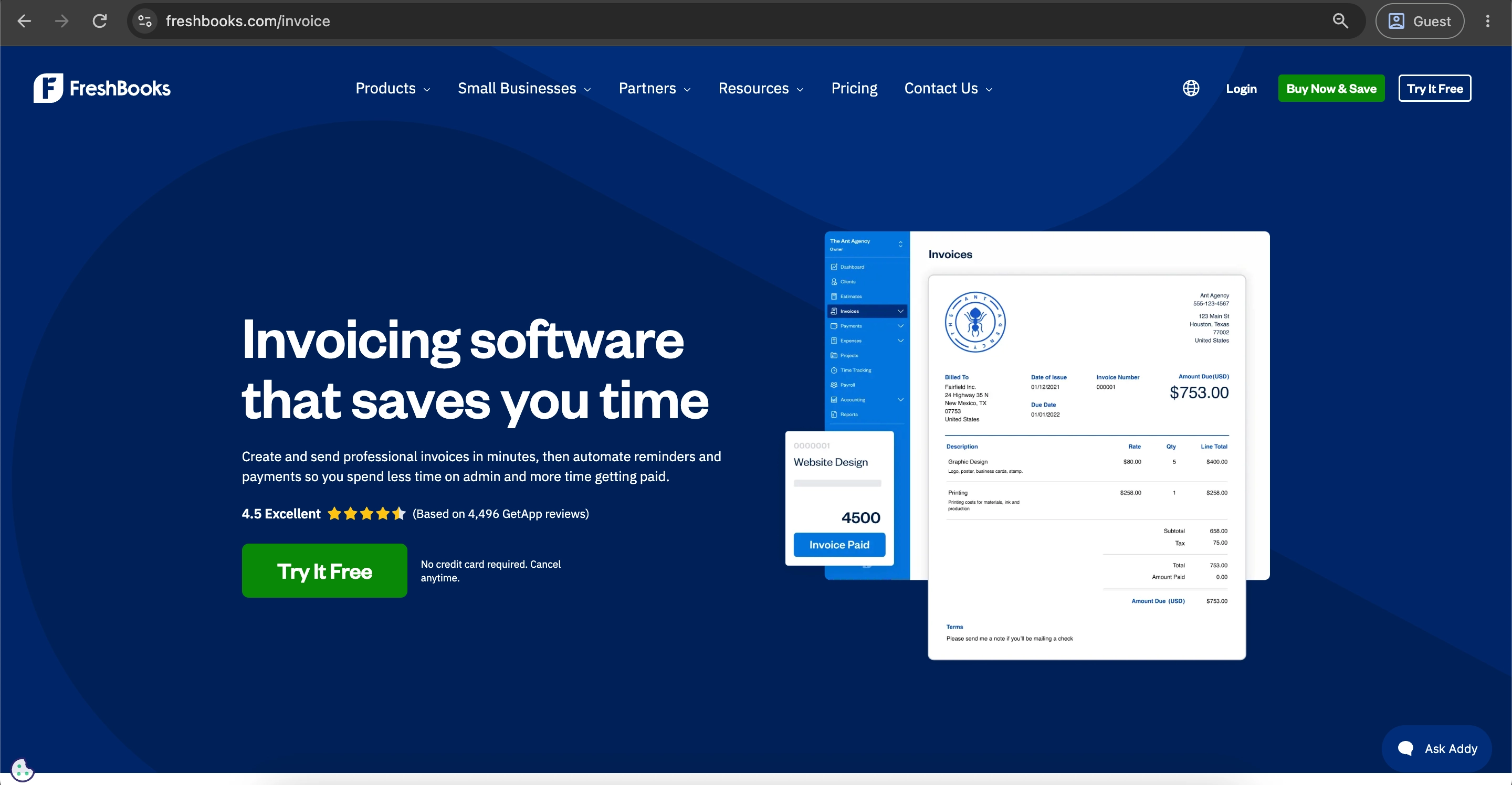
FreshBooks is a cloud-based accounting and invoicing program for freelancers and small service companies. The program allows users to generate their own branded invoices, track their time and expenses, and accept card or bank payments directly from the invoice, so the payment is recorded in books automatically.
Pricing, ratings, and product information checked: October 2026.
What are the customer ratings of FreshBooks?
- G2 — 4.5 out of 5 points based on 981 user reviews
- Capterra — 4.5 out of 5 points based on 4,529 user reviews
What are the advantages of FreshBooks?
- Unlimited invoices on every plan: All U.S. plans include unlimited invoices, estimates, and expense tracking; the plan limit applies to billable clients, not invoices.
- Automatic reminders and late fees: You can schedule email reminders before and after the due date and add late fees as a percentage or a flat amount.
- Ease of use: Reviewers praise the simple interface, even those without an accounting background.
What are the shortcomings of FreshBooks?
- Pricing rises with client count: The Lite plan covers 5 billable clients, the Plus plan extends to 50, and the Premium has no client limit. Additional team members cost $11 per month, and Advanced Payments cost $20 per month.
- Limited accounting features on Lite: No accountant access, double-entry reports, or bank reconciliation.
- Limited AP features: Bill management requires Premium; no purchase orders or multi-level approvals.
- Integration issues: G2 reviewers report limited options and integration problems.
What is the cost of FreshBooks?
FreshBooks charges $23 per month for Lite, $43 for Plus, $70 for Premium, and offers Select at custom rates. An annual plan provides 10% savings.
| Plan | Monthly price | Billable clients | Key additions |
|---|---|---|---|
| Lite | $23 | 5 | Invoicing, expenses, time tracking, online payments |
| Plus | $43 | 50 | Accountant access, double-entry reports, bank reconciliation |
| Premium | $70 | Unlimited | Bill management (AP), project profitability |
| Select | Custom | Unlimited | Two team seats, lower payment fees, migration help |
What types of businesses is FreshBooks designed for?
FreshBooks is ideal for freelancers, independent business owners, and small businesses offering services. FreshBooks is less suited to businesses that require inventory management or a purchasing approval process. On top of that, firms with many foreign clients will have to pay extra for currency conversion.
Precoro
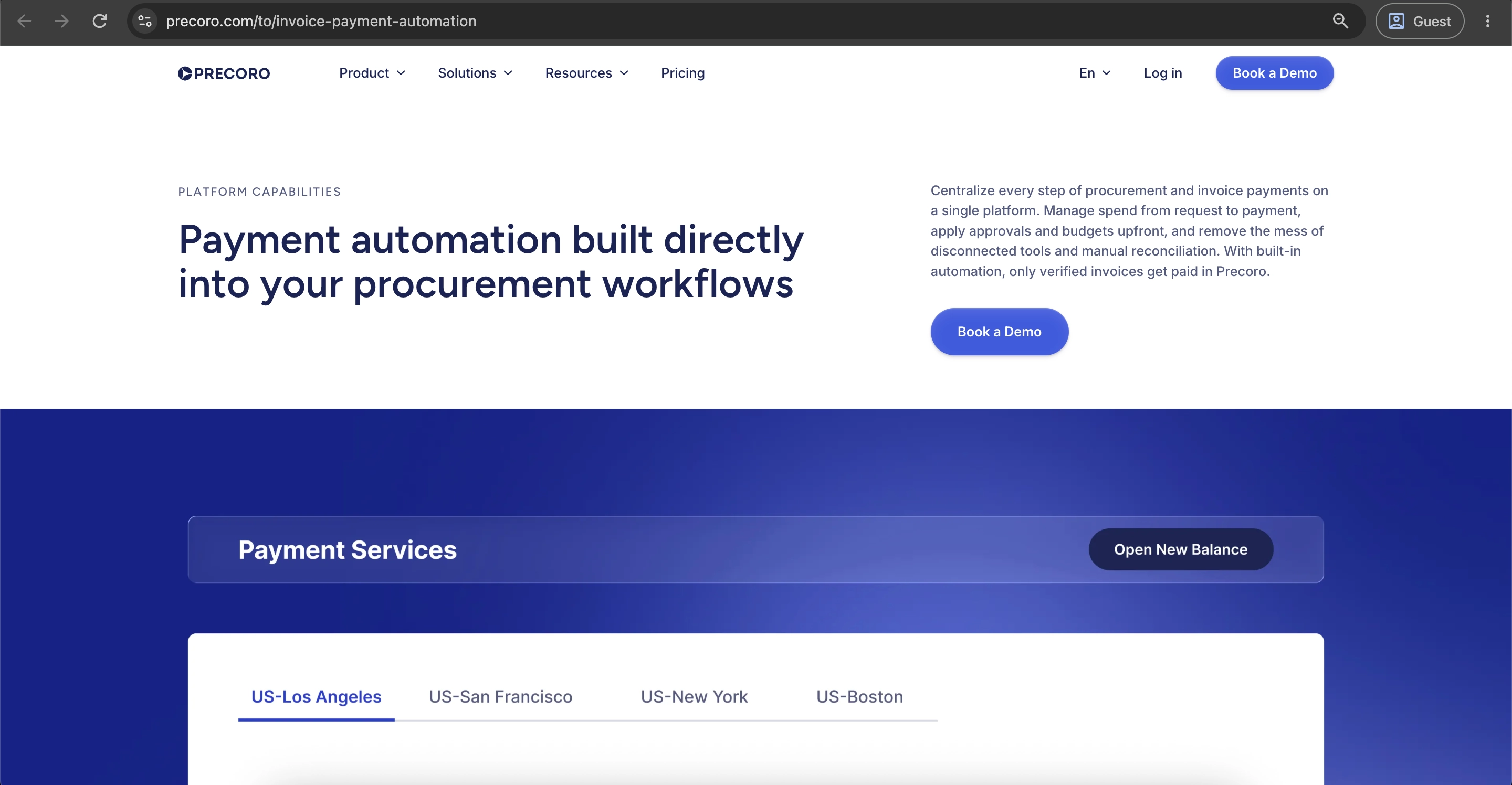
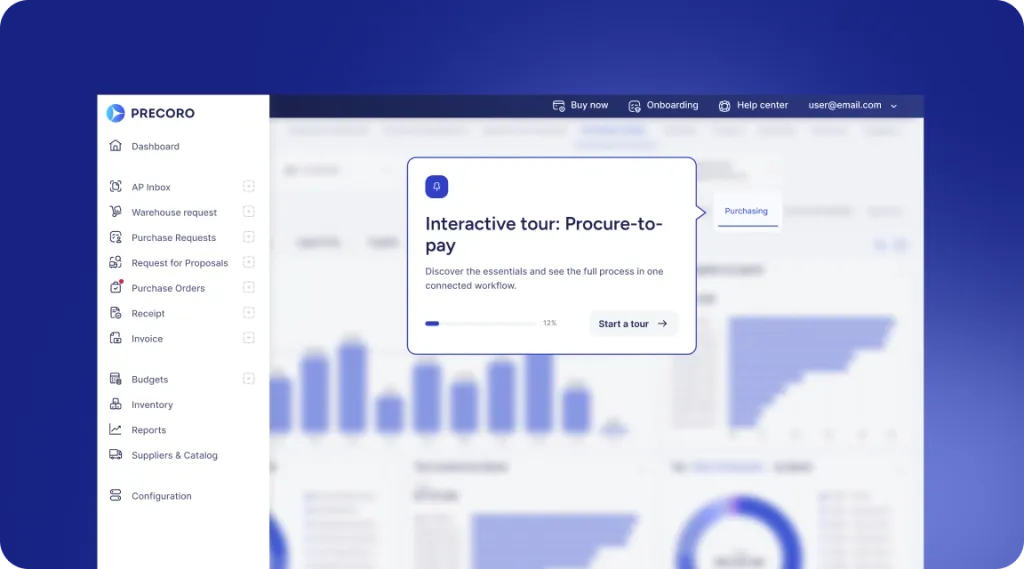
Precoro is an agentic procurement and AP centralization platform built to give finance and procurement teams control over company spending before money is committed. Unlike the customer invoicing tools in this guide, Precoro handles the invoices your company receives from suppliers. It checks each invoice against the purchase order and receipt, routes it for approval, and pays it from the same platform.
This process is known as three-way matching. If there is any discrepancy between the amount/quantity, Precoro identifies the difference and sends the invoice back for re-approval, so the company isn’t billed for anything it didn’t order or receive.
Once an invoice is approved, U.S. businesses can pay it directly in Precoro by ACH, same-day ACH, wire, or international transfer through Precoro Payments, built with Stripe. Payment data then syncs to accounting and ERP systems such as NetSuite, QuickBooks Online, and Microsoft Dynamics 365 Business Central. Precoro works alongside the ERP rather than replacing it.
Precoro is best suited for companies with several departments, locations, or subsidiaries that need central control over supplier invoices and spending, with approval rules and budgets set up for each team or entity.
Pricing, ratings, and product information checked: October 2026.
What are the customer ratings of Precoro?
- G2 — 4.7 out of 5 points based on 222 user reviews
- Capterra — 4.8 out of 5 points based on 255 user reviews
What are the advantages of Precoro?
- Automated three-way matching: Precoro matches POs, receipts, and invoices, notifies everyone involved of discrepancies, and can trigger re-approval automatically.
- Integrated supplier payments: The Precoro Payments system allows U.S.-based organizations to pay eligible invoices via ACH, same-day ACH, wire transfer, or international transfer, with payment data integrated into the ERP.
- Flexible invoice approval: The approval rules can be adjusted based on amount, department, or legal entity; additionally, non-PO invoices may be approved.
- Accounting and ERP system integration: Precoro supports native integrations with QuickBooks Online, QuickBooks Desktop, Xero, NetSuite, Sage Intacct, Sage 300, Sage 50 UK, and Microsoft Dynamics 365 Business Central. There are also some additional integrations such as BILL integration for payments, REST API for data exchange with third parties, and SFTP connector.
- Supplier catalog ordering: PunchOut catalogs allow employees to add products from suppliers such as Amazon Business, Home Depot, and Staples directly to purchase requests, minimizing manual errors in pricing and item details.
- Multi-currency support: Precoro manages currencies at three levels: item, document, and company.
- Ease of use and support: G2 users rate Precoro 9.4 out of 10 for ease of use and 9.7 for quality of support.
What are the shortcomings of Precoro?
- No free plan: Precoro doesn't offer a free plan but provides a temporary free trial to test out capabilities before committing.
- Payments only for U.S. businesses: Precoro Payments is currently available only to U.S. businesses.
What is the cost of Precoro?
Precoro starts at $499 per month for the Core plan. The Automation plan costs $999 per month, and Enterprise pricing is custom. All three plans are billed annually.
| Plan | Price | Key features |
|---|---|---|
| Core | $499/month (billed annually) | Purchase requests, purchase orders, receipts, and invoices |
| Automation | $999/month | Everything in Core, plus Intelligent AP automation with AI Document Processing, AI agents and an AI assistant |
| Enterprise | Custom | Everything in Automation, plus security features such as IP whitelisting and enterprise-grade data protection |
What types of businesses is Precoro designed for?
Precoro is most appropriate for mid-sized and growing companies with multiple departments, branches, or entities needing approval of purchases, control of budget, and processing of suppliers’ invoices from a single system.
Precoro is ideal for companies using finance and procurement tools such as QuickBooks, Xero, NetSuite, Sage, or Microsoft Dynamics that want to implement invoice matching controls before making any payment approvals to the suppliers. Precoro isn't the best fit for freelancers and companies whose sole purpose is to bill their customers or that require an affordable invoicing software.
Wave
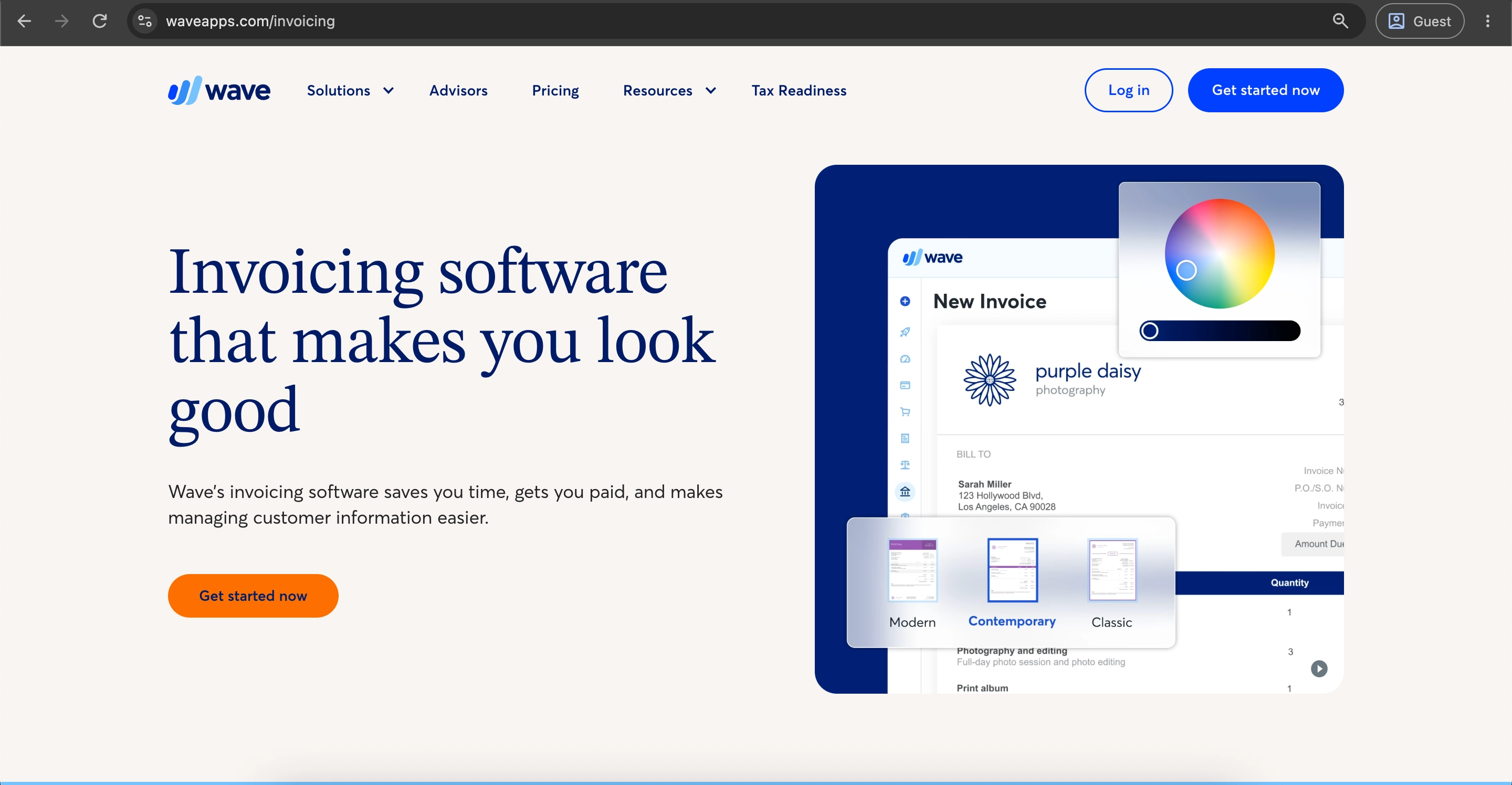
Wave is cloud accounting and invoicing software for freelancers and very small businesses in the United States and Canada.
Pricing, ratings, and product information checked: October 2026.
What are the customer ratings of Wave?
- G2 — 4.3 out of 5 points based on 327 user reviews
- Capterra — 4.4 out of 5 points based on 1,732 user reviews
What are the advantages of Wave?
- Free plan: The Starter plan has no time limit, so a small business can use it indefinitely and pay only when customers pay online.
- Easy to use: Customers without finance training can learn it quickly.
- Mobile apps: iOS and Android apps are available.
What are the shortcomings of Wave?
- Card fees: Card payments cost 2.9% + $0.60 per payment (3.4% + $0.60 for American Express), which adds up across many small invoices.
- Paid reminders: Automated late payment reminders and bank auto-import are only on the Pro plan.
- Limited scale and support: Support is a frequent complaint, and live chat and email support are only available on Pro.
- Geography: Wave is available only to businesses in the U.S. and Canada.
What is the cost of Wave?
Wave offers a free Starter plan and a Pro plan at $19 per month or $190 per year. Payment processing, payroll, and bookkeeping services cost extra.
| Plan | Price | What’s included |
|---|---|---|
| Starter | Free | Unlimited invoices and estimates, bookkeeping, manual bank uploads, reports |
| Pro | $19/month or $190/year | Automatic bank feeds, receipt scanning, late payment reminders, extra users, live support |
| Wave Advisors | From $149/month | A dedicated bookkeeper plus Pro features |
Online payment fees apply on both plans: 1% for bank payments, 2.9% + $0.60 for most credit cards, and 3.4% + $0.60 for American Express. On Pro, the $0.60 fee is waived for the first 10 card payments each month. Payroll starts at $40/month plus $6 per employee.
What types of businesses is Wave designed for?
Wave would be an appropriate tool for freelancers and very small service-oriented businesses that wish to do invoicing and bookkeeping for free. However, it wouldn't work for growing teams that need approval processes and payment tools, as well as for organizations that deal with many card transactions.
QuickBooks Online
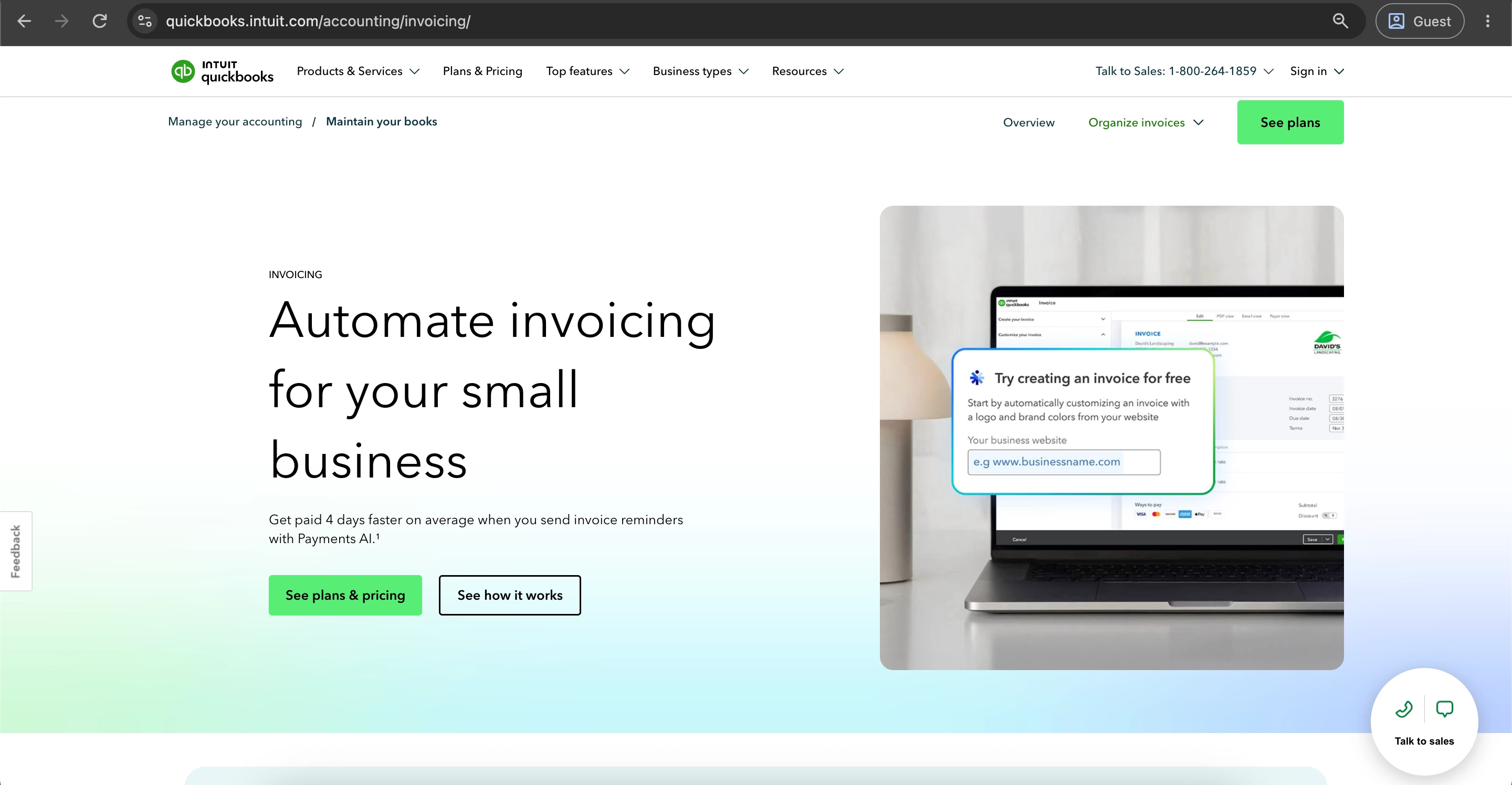
QuickBooks Online is Intuit's cloud accounting software. Invoicing is one part of a larger system that also covers payroll, inventory, and bill payment.
Pricing, ratings, and product information checked: October 2026.
What are the customer ratings of QuickBooks Online?
- G2 — 4 out of 5 points based on 3,894 user reviews
- Capterra — 4.3 out of 5 points based on 8,549 user reviews
What are the advantages of QuickBooks Online?
- One system for accounting: Invoicing is combined with bookkeeping, payroll, and inventory in one package.
- Hundreds of integrations: Intuit offers integration with more than 750 applications, including PayPal, Square, Shopify, Gusto, and Amazon.
- Different payment methods: Payment can be made using credit card, ACH, PayPal, Venmo, and Apple Pay.
What are the shortcomings of QuickBooks Online?
- No free plan: Only a 30-day free trial is available.
- Performance issues: Reviewers on Capterra and G2 report bugs and slow loading times.
- Support quality: G2 reviewers say support could be better, especially in response times.
What is the cost of QuickBooks Online?
QuickBooks Online costs $38/month for Simple Start, $85 for Essentials, $140 for Plus, and $340 for Advanced (U.S. pricing). New customers can choose either 50% off for the first three months or a 30-day free trial.
| Plan | Monthly price | Users | Key additions |
|---|---|---|---|
| Simple Start | $38 | 1 | Invoicing, online payments, expense tracking, reports |
| Essentials | $85 | 3 | Bill management, multi-currency, employee time on invoices |
| Plus | $140 | 5 | Project profitability, budgeting, inventory tracking |
| Advanced | $340 | 25 | Batch invoicing, workflow automation, custom permissions, 24/7 support |
What types of businesses is QuickBooks Online designed for?
QuickBooks Online is best suited for U.S. businesses that work with an external accountant and want accounting and invoicing together. It is less suitable for freelancers who only send invoices and for companies that need purchase approvals and spend control before bills are paid. Many such companies pair it with a dedicated AP or procurement tool.
Zoho Invoice
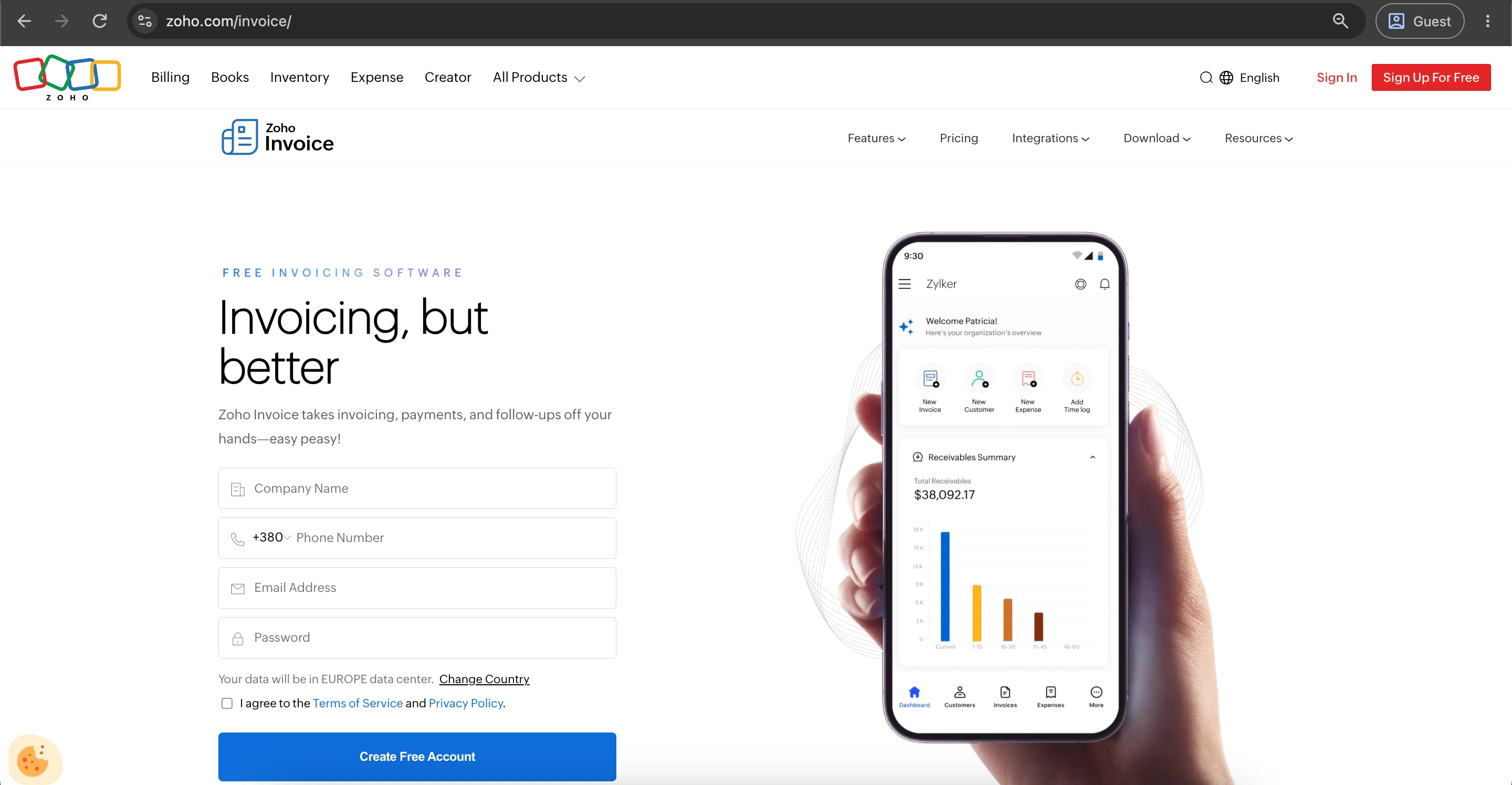
Zoho Invoice is a free invoicing app from Zoho for freelancers and small businesses. It includes recurring invoices, payment reminders, a client portal, and time tracking at no cost.
Pricing, ratings, and product information checked: October 2026.
What are the customer ratings of Zoho Invoice?
- G2 — 4.7 out of 5 points based on 366 user reviews
- Capterra — 4.7 out of 5 points based on 823 user reviews
What are the advantages of Zoho Invoice?
- Many payment gateways: Zoho Invoice connects with more than 10 gateways, including Stripe, PayPal, Square, and Authorize.net.
- Reminders and customer portal included: Customizable invoices, recurring invoices, time tracking, expense management, automatic payment reminders, and a customer portal come at no cost.
- Zoho ecosystem: Reviewers highlight easy integration with other Zoho apps.
What are the shortcomings of Zoho Invoice?
- Limits for Free Plan: The Free Plan allows up to 2 users, 3 projects, and 500 invoices per year. Invoices will have "Powered by Zoho Invoice" branding on them.
- Just invoices, not accounting: No general ledger, no bank reconciliation, no financial statements.
- No phone support: Help is available only through email and online channels.
- No paid tier to upgrade to: Outgrowing Zoho Invoice means moving to another product, usually Zoho Billing or Zoho Books.
What is the cost of Zoho Invoice?
Zoho Invoice has no subscription fee, and Zoho charges no per-invoice or per-transaction fees. Your payment gateway (for example, Stripe or PayPal) charges its own processing fees.
What types of businesses is Zoho Invoice designed for?
The Zoho Invoice software is ideal for freelance workers, consultants, and small business service providers who don't exceed 500 invoices in a year. The program is also ideal for teams that have been using Zoho applications.
BILL
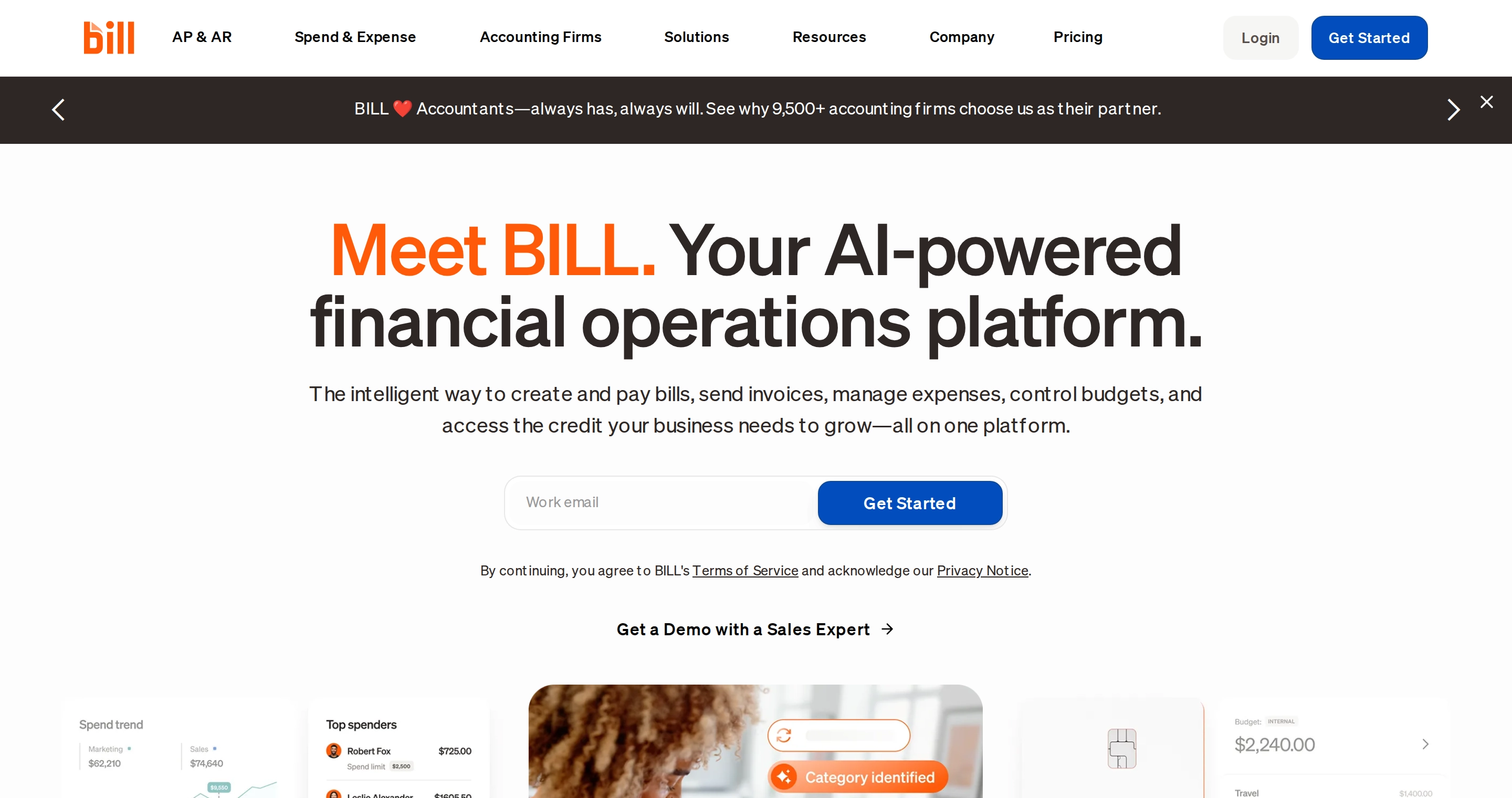
BILL is a financial management system that combines AP and AR in one solution. The system handles supplier bills from receipt to payment, sends customer invoices, and collects payment. It syncs with accounting software such as QuickBooks Online, Xero, and NetSuite.
Pricing, ratings, and product information checked: October 2026.
What are the customer ratings of BILL?
- G2 — 4.4 out of 5 points based on 1,812 user reviews
- Capterra — 4.1 out of 5 points based on 563 user reviews
What are the advantages of BILL?
- Diverse supplier payment options: BILL offers ACH, card, virtual card, check, and international payments to more than 130 countries.
- Seamless accounting integration: The BILL platform integrates its bills in both USD and the user's native currency with QuickBooks, Xero, Sage Intacct, Oracle NetSuite, Microsoft Dynamics GP, and Microsoft Dynamics 365 Business Central.
- Easy setup process: Users find the system intuitive and like the onboarding process.
What are the shortcomings of BILL?
- Sync problems: Some customers have experienced issues syncing BILL to QuickBooks Online.
- Customer support: Service is rated the lowest by customers, with a score of 3.8 out of 5.
What is the cost of BILL?
The monthly fees for Essentials, Team, and Corporate plans are $49, $65, and $89 per user, respectively. The Enterprise plan pricing will be customized. There is usually a trial offer. The Essentials plan can integrate with accounting software through file import/export.
| Plan | Price per user/month | Key additions |
|---|---|---|
| Essentials | $49 | Basic AP and AR, invoice capture, approval, manual CSV synchronization |
| Team | $65 | Automatic two-way sync with QuickBooks and Xero, custom user roles |
| Corporate | $89 | Custom approval workflows, API access, procurement |
| Enterprise | Custom | Advanced controls for larger organizations |
What types of businesses is BILL designed for?
BILL is designed for small to mid-size businesses that want to pay bills and invoice customers in one system synced with their accounting software. However, it isn't as ideal for freelancers because the per-user pricing model can be costly for very small groups.
Invoice Ninja
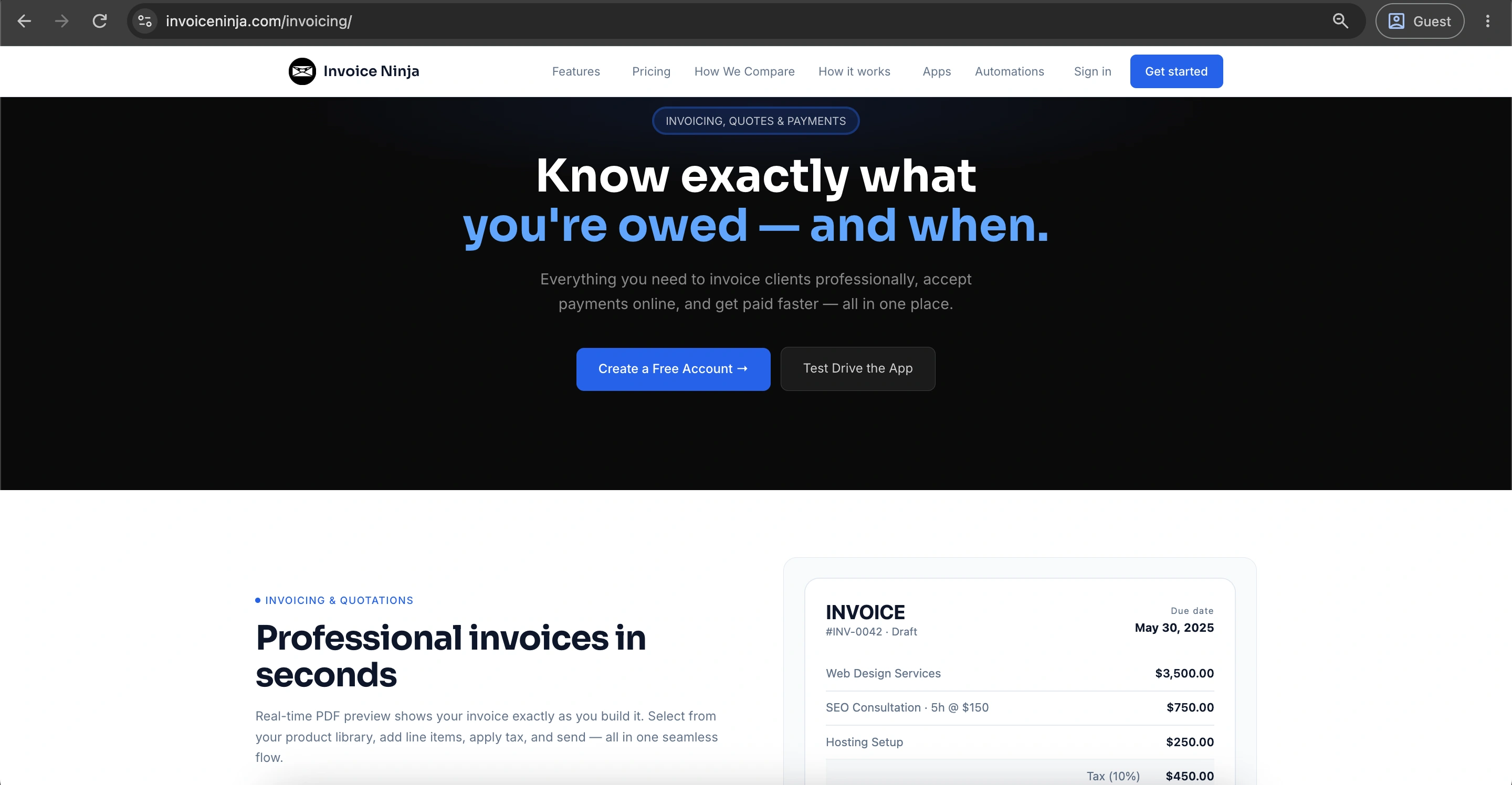
Invoice Ninja is an open-source invoicing and payment system for freelance and small business users. It can be used in both hosted and server-based modes and includes features for invoicing, quoting, subscriptions, time tracking, expenses, and also a customer portal to access their invoices online.
Pricing, ratings, and product information checked: October 2026.
What are the customer ratings of Invoice Ninja?
- G2 — 4.3 out of 5 points based on 22 user reviews
- Capterra — 4.7 out of 5 points based on 167 user reviews
What are the advantages of Invoice Ninja?
- Self-hosting option: Useful for businesses with strict data storage rules.
- Generous free plan: Up to 5 clients, unlimited invoices, recurring billing, time tracking, payment gateways, and a client portal.
- Many payment gateways: Stripe, PayPal, Square, GoCardless, Authorize.net, Mollie, Checkout.com, and Braintree, among others. You can pass the gateway fee on to your client.
- Apps for every device: Native apps for macOS, Windows, Linux, iOS, and Android.
What are the shortcomings of Invoice Ninja?
- Self-hosting requires technical skills: You manage the server, setup, and security updates yourself.
- Interface and templates: Reviewers report occasional template bugs and an unclear interface.
- Limited support on the free plan: Support is mainly community-based.
- Reports and reconciliation on paid plans: Reports require Pro, and bank reconciliation requires Enterprise.
- No supplier payment workflows: No purchase orders, approvals, or bill payment.
What is the cost of Invoice Ninja?
The hosted plan is free for up to 5 clients, with unlimited invoices and 1 user. Ninja Pro costs $14/month or $140/year. Enterprise starts at $18/month for 1–2 users and rises to $300/month for 51–100 users. Premium Business has custom pricing from $280/year. All paid plans include a 30-day money-back guarantee.
What types of businesses is Invoice Ninja designed for?
Invoice Ninja is best suited for freelancers, small agencies, and technically skilled teams that want low-cost invoicing and greater control over hosting and data management. It is less suitable for teams without technical staff that want to self-host, or for businesses that need supplier payments.
Square Invoices
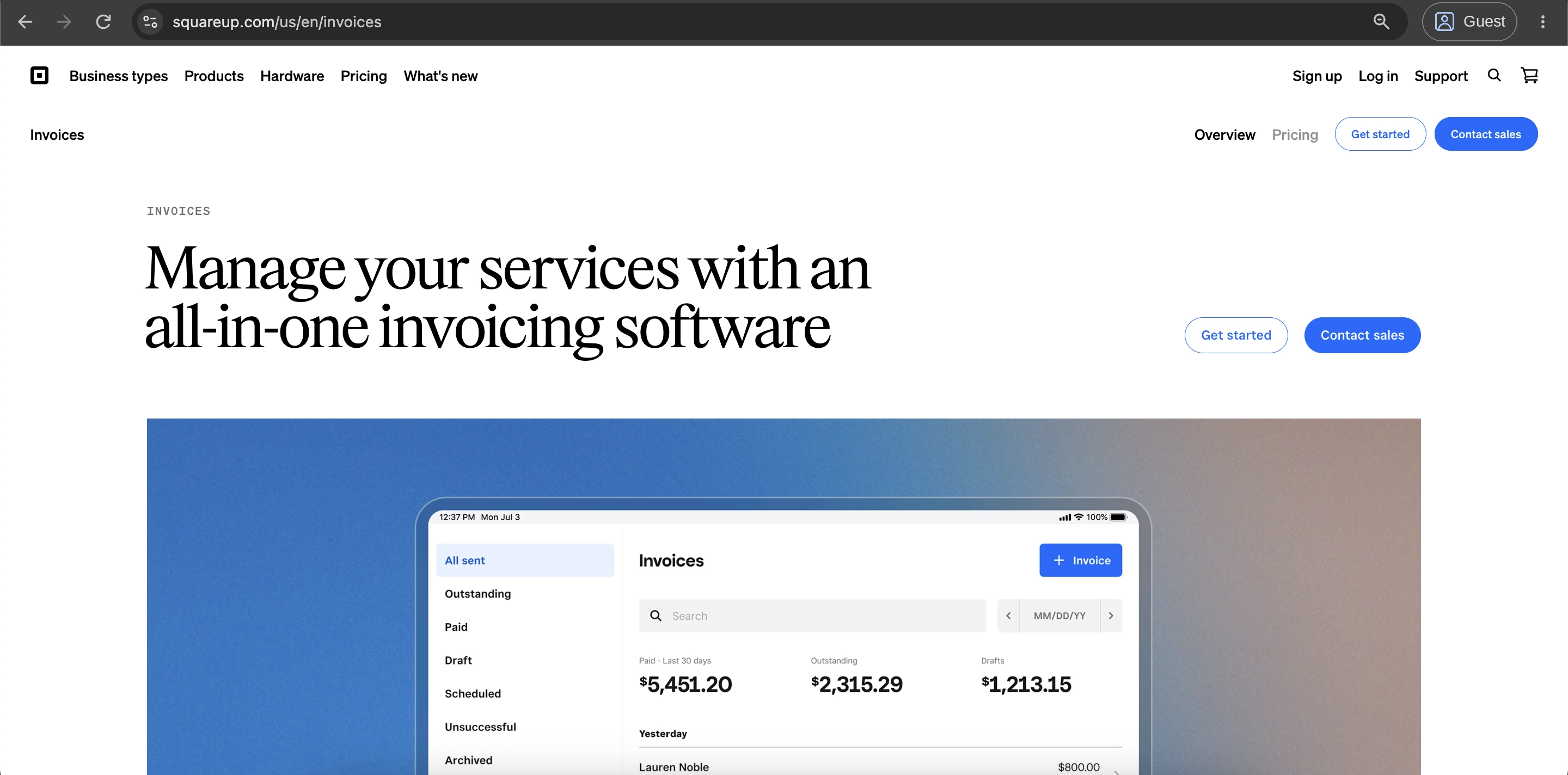
Square Invoices is the invoicing tool inside Square’s payment and point-of-sale (POS) system. It lets businesses send invoices and estimates from a phone or computer, collect card and bank payments online, and see invoice payments alongside in-store sales in the same Square account.
Pricing, ratings, and product information checked: October 2026.
What are the customer ratings of Square Invoices?
- Capterra — 4.7 out of 5 points based on 123 user reviews
What are the advantages of Square Invoices?
- No monthly fee to start: The Free plan has no monthly software fee.
- Automated billing: Recurring invoices, flexible payment schedules, and automatic reminders.
- Easy to use: Reviewers praise its simple interface.
What are the shortcomings of Square Invoices?
- Pricing is per location: Businesses with several sites pay a separate plan fee for each.
- Missing features: Reviewers mention lack of built-in e-signature and that reminder dates for longer projects require manual adjustment.
- Tied to Square’s payment system: You can’t connect another payment processor.
- No supplier payment workflows: No bill payment, purchase orders, or approvals.
What is the cost of Square Invoices?
Square Invoices is available on the Free plan, Plus at $49 per month per location, and Premium at $149 per month per location.
What types of businesses is Square Invoices designed for?
Square Invoices is best suited for U.S. contractors, beauty salons, restaurants, retail stores, and local service providers that already use Square. It is less suitable for businesses that invoice large amounts by card, need full accounting or supplier payments, or want their own payment processor.
Paymo
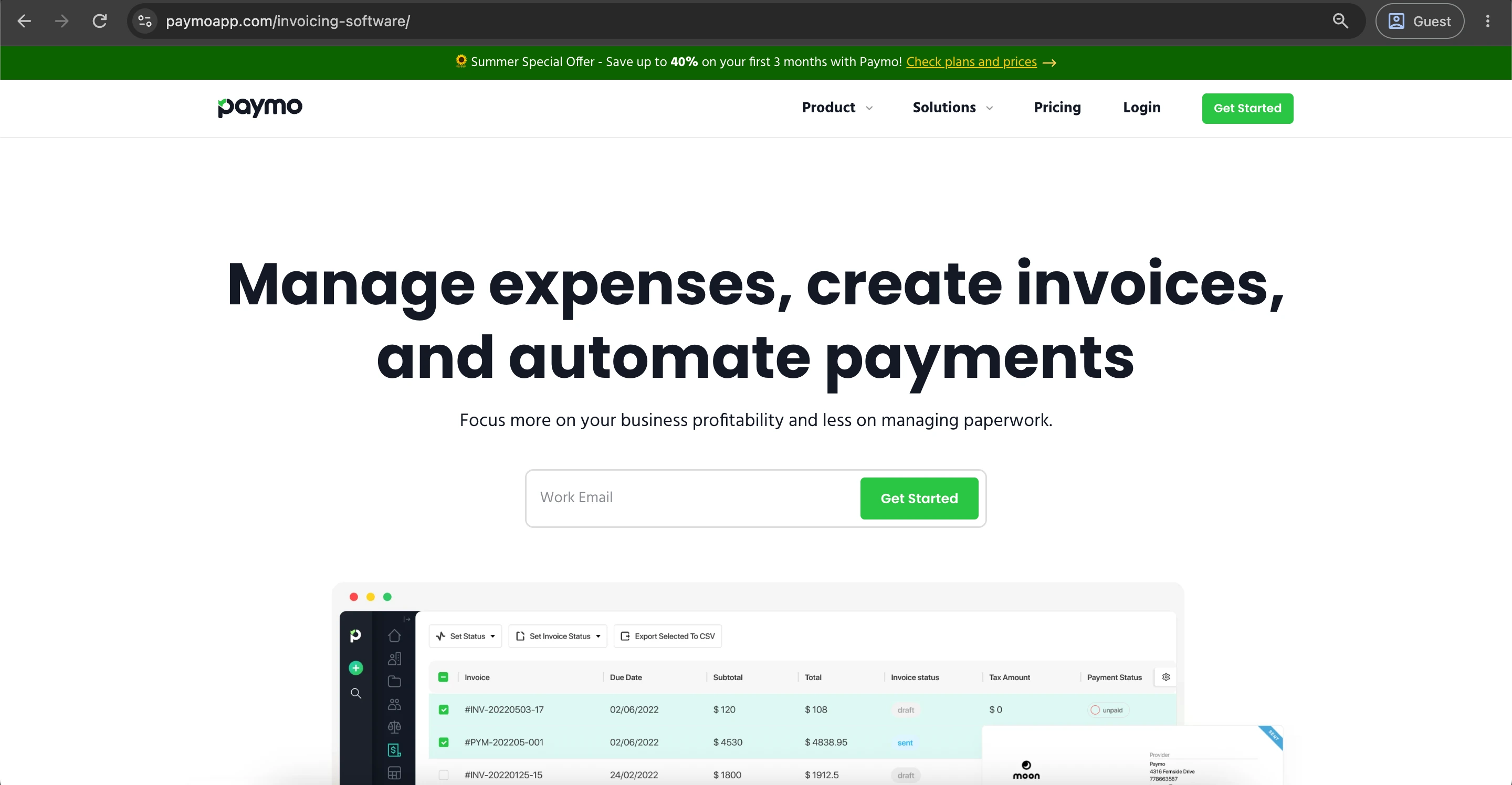
Paymo is project management software with built-in time tracking and invoicing for agencies, consultants, and other client-focused teams of up to 20 people.
Pricing, ratings, and product information checked: October 2026.
What are Paymo's customer ratings?
- G2 — 4.6 out of 5 points based on 595 user reviews
- Capterra — 4.7 out of 5 points based on 686 user reviews
What are the advantages of Paymo?
- One tool for time, tasks, and invoices: Invoices can be created from tracked time, and there is a free plan.
- Unlimited invoices on every plan: Even the Free plan includes unlimited invoices.
What are the shortcomings of Paymo?
- Built for small teams: Designed for teams of up to 20 people.
- Support and reporting: G2 reviewers cite slow support and weak reporting.
- No supplier payments: No bills, purchase orders, or approvals.
- Introductory pricing resets: Monthly Solo rises from $5.90 to $9.90, and Plus rises from $10.90 to $15.90 per user after three months.
What is the cost of Paymo?
Paymo offers a Free plan. Paid plans billed annually cost $5.90 for Solo, $10.90 per user for Plus, and $16.90 per user for Pro each month. Regular monthly prices are $9.90, $15.90, and $23.90.
| Plan | Annual billing (per month) | Monthly billing | Users and limits |
|---|---|---|---|
| Free | $0 | $0 | 1 user, 1 client, 2 projects, unlimited invoices |
| Solo | $5.90 | $9.90 | 1 user, 3 clients, 5 projects |
| Plus | $10.90 per user | $15.90 per user | Team access, unlimited clients, recurring invoices, estimates, expenses |
| Pro | $16.90 per user | $23.90 per user | Gantt charts, resource scheduling, project timeline |
What types of businesses is Paymo designed for?
Paymo is best suited for creative agencies, consultancies, and service businesses with 2 to 20 people that bill clients for tracked time. It is less suitable for businesses that only need invoicing, for larger teams, and for companies that need accounting or supplier payments.
BigTime
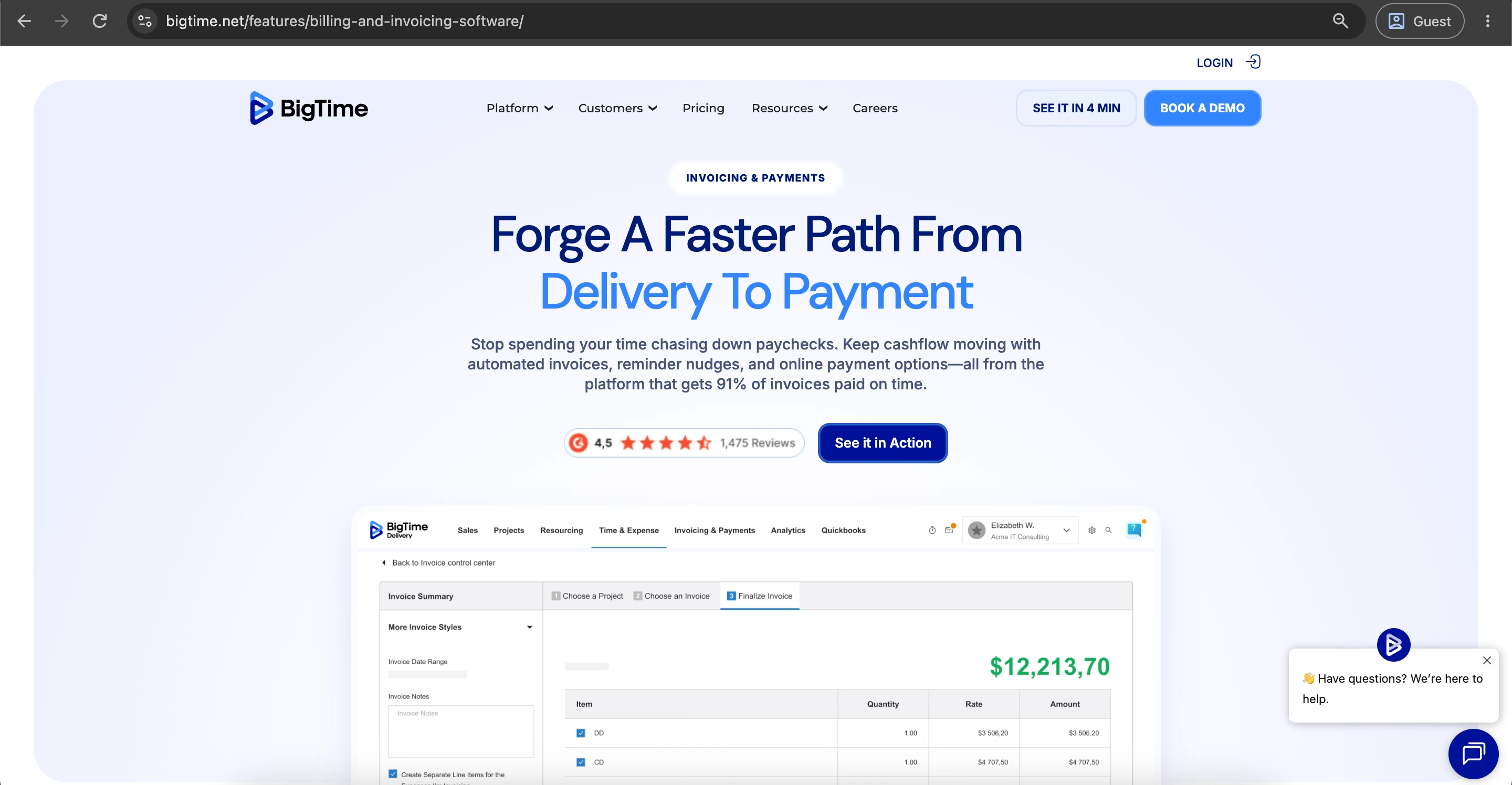
BigTime is professional services automation (PSA) software for companies that bill clients for time, such as consulting, accounting, engineering, architecture, and IT services firms.
Pricing, ratings, and product information checked: October 2026.
What are the customer ratings of BigTime?
- G2 — 4.4 out of 5 points based on 1,815 user reviews
- Capterra — 4.6 out of 5 points based on 664 user reviews
What are the advantages of BigTime?
- Support and ease of use: Capterra reviewers praise both.
- Broad integrations: 24 named connectors, including QuickBooks Online and Desktop, Sage Intacct, Salesforce, HubSpot, and Jira.
- Flexible billing setup: Rates and invoice types can be customized for each project.
- Client portal with autopay: Clients can view open invoices, pay immediately or schedule payments, and save payment methods. Automatic reminders follow up on unpaid invoices.
What are the shortcomings of BigTime?
- No accounts payable features: The platform does not support supplier bills, purchase orders, or AP approval workflows.
- Outdated design and few templates: Capterra reviewers point to an outdated interface and a limited template selection, as well as QuickBooks sync issues and additional costs for add-ons.
What is the cost of BigTime?
BigTime’s Essentials plan begins at $20 per user per month. Pricing for the Advanced and Premier plans is available on request, while Enterprise pricing is customized for each organization. BigTime offers a free trial.
| Plan | Price | Key features |
|---|---|---|
| Essentials | From $20 per user/month | Time and expense tracking, project management, billing and invoicing, automatic reconciliation, QuickBooks integration |
| Advanced | Quote-based | Multi-currency expenses, custom reporting, project templates, custom invoice templates |
| Premier | Quote-based | Multi-currency invoicing, multi-level approvals, custom cost and rate management, project budgeting |
| Enterprise | Custom | Finance-focused PSA with built-in quoting, enterprise-scale resource management, custom integrations |
What types of businesses is BigTime designed for?
BigTime is a strong fit for professional services firms that bill by the hour, including IT services, engineering, and consulting companies. It's less practical for freelancers, small teams, or businesses primarily focused on managing supplier payments.
Invoice payment software feature comparison: How do the 10 solutions compare?
The ten tools differ most in four areas: payment methods, total cost, accounting integrations, and automation. The tables below compare them side by side.
Which invoice tools support the most payment methods and currencies?
QuickBooks Online accepts the most customer payment methods. BILL leads for international supplier payments, and Zoho Invoice and Invoice Ninja are the most flexible for multi-currency invoicing.
| Software | Payment methods | Multi-currency |
|---|---|---|
| FreshBooks | Card, ACH (U.S. only), Apple Pay | Yes; 2% conversion fee |
| Precoro | Supplier payments: ACH, same-day ACH, wire, international (U.S. businesses only) | Yes |
| Wave | Card, bank payment | U.S. and Canada only |
| QuickBooks Online | Cards, Apple Pay, PayPal, Venmo, ACH | Yes, from Essentials |
| Zoho Invoice | 10+ gateways, incl. Stripe, PayPal, Square | Yes |
| BILL | Customers: card, ACH. Suppliers: ACH, check, virtual card, international wire | Yes; 130+ countries |
| Invoice Ninja | Stripe, PayPal, and other gateways | Yes |
| Square Invoices | Card, ACH | One currency per account |
| Paymo | Stripe, PayPal | Yes |
| BigTime | ACH, major credit cards | Premier plan only |
Which tools can pay supplier invoices?
BILL and Precoro offer the most comprehensive supplier payment workflows in the reviewed solutions. QuickBooks Online and FreshBooks Premium offer basic bill management.
| Software | Supplier payment methods | Availability |
|---|---|---|
| Precoro | ACH, same-day ACH, wire, international transfer | Eligible U.S. businesses (Precoro Payments) |
| BILL | ACH, check, card, virtual card, international payment | 130+ destination countries |
| QuickBooks Online | Bill pay by ACH or check | Essentials plan and above |
| FreshBooks | Bill tracking; no built-in supplier payments | Premium plan |
How do billing software pricing, free plan options, and payment processing fees compare?
The only software in this list that comes free of charge is Zoho Invoice. Wave, Invoice Ninja, Square Invoices, and Paymo offer free plans, but they’re limited in scope. For small businesses, the annual cost of processing payments is higher than the subscription fee, so make comparisons between the two.
| Software | Free plan | Paid plans from | Card fee on invoices | ACH fee |
|---|---|---|---|---|
| FreshBooks | No | $23/month | 2.9% + $0.30 | 1% |
| Precoro | No | $499/month (Core, billed annually) | Not applicable (AP tool) | Not published |
| Wave | Yes (Starter) | $19/month (Pro) | 2.9% + $0.60 | 1% |
| QuickBooks Online | No (30-day trial) | $38/month | 2.99% | 1% |
| Zoho Invoice | Yes, full product | — | Set by your gateway | Set by your gateway |
| BILL | No | $49/user/month | Varies | $0.59 per outgoing ACH payment |
| Invoice Ninja | Yes (5 clients) | $14/month | Set by your gateway | Set by your gateway |
| Square Invoices | Yes | $49/month per location | 3.3% + $0.30 (Free); 2.9% + $0.30 (paid) | 1%, $1 minimum ($10 cap on paid plans) |
| Paymo | Yes (1 user, 1 client) | $5.90/month (annual) | Set by your gateway | Set by your gateway |
| BigTime | No | $20/user/month | Not published | Not published |
What does invoice payment processing cost at different volumes?
With $10,000 per month in card transactions, the six configurations listed below have a monthly difference of roughly $40, and more than 90% of the charges are for processing. When the volume increases, the paid configuration with a smaller card rate will be cheaper.
The table assumes all invoices are paid by U.S. domestic card, at the standard published rates above, with Stripe’s standard 2.9% + $0.30 for Zoho Invoice.
| Setup | $2,000/month (10 invoices) | $10,000/month (20 invoices) | $50,000/month (50 invoices) |
|---|---|---|---|
| Zoho Invoice + Stripe | $61 | $296 | $1,465 |
| Wave Starter | $64 | $302 | $1,480 |
| Square Free | $69 | $336 | $1,665 |
| FreshBooks Lite | $84 | $319 | $1,488 |
| QuickBooks Online Simple Start | $98 | $337 | $1,533 |
| Square Plus | $110 | $345 | $1,514 |
Totals = monthly subscription + card processing fees, rounded to the nearest dollar.
Bank payments can reduce processing costs when their fees are lower than card fees. Among the providers listed, ACH costs about 1% or less. If the $50,000 above were paid by ACH at 1%, fees would fall to about $500 a month instead of roughly $1,450–$1,650 by card.
Which invoice payment system offers the best accounting software and ERP integrations?
BILL and Precoro offer the broadest accounting and Enterprise Resource Planning (ERP) sync in this list, with connections to NetSuite, Sage Intacct, and Microsoft Dynamics, as well as QuickBooks and Xero. QuickBooks Online has the largest app ecosystem, with 750+ integrations.
| Software | Accounting and ERP connections | Integration approach |
|---|---|---|
| FreshBooks | Built-in accounting | 100+ apps, including Stripe, PayPal, Gusto, Shopify, and HubSpot |
| Precoro | QuickBooks Online and Desktop, Xero, NetSuite, Sage Intacct, Sage 300, Sage 50 UK, Microsoft Dynamics 365 Business Central, Exact Online | Native integrations, BILL integration for payments, REST API, SFTP |
| Wave | Built-in accounting | Limited: PayPal, Stripe, and Etsy |
| QuickBooks Online | Is the accounting system | 750+ apps |
| Zoho Invoice | Zoho Books | Strongest inside the Zoho suite |
| BILL | QuickBooks, Xero, NetSuite, Sage Intacct, Microsoft Dynamics | Two-way sync (automatic from the Team plan) |
| Invoice Ninja | No direct ERP sync | API access for custom connections |
| Square Invoices | Square POS and Appointments | Square ecosystem |
| Paymo | Accounting tools via integrations | Integrations and API from the Plus plan |
| BigTime | QuickBooks Online, QuickBooks Desktop, Xero, Sage Intacct | 24 named connectors |
The right choice depends on where your accounting already lives. If your main ledger is QuickBooks Online, Xero, or FreshBooks, most tools here will connect to it. If your company runs on an ERP such as NetSuite, Sage Intacct, or Microsoft Dynamics, the shortlist is much smaller: BILL, Precoro, and BigTime (for Sage Intacct) are built to sync with ERPs, while simple invoicing tools are not.
Two-way sync matters more than the number of integrations. With two-way sync, invoices, payments, and vendor records update in both systems automatically, so nobody has to reconcile them by hand.
Which invoice payment solution is best for automation, customization, or a simple invoice workflow?
For supplier invoices, BILL and Precoro support the most extensive automation workflows, but their purchasing and matching capabilities differ. For customer invoices, almost every tool here automates recurring invoices and reminders. BigTime automatically converts billable time into invoices, and Invoice Ninja is the most customizable.
| Capability | Precoro | BILL |
|---|---|---|
| Invoice data capture (OCR) | Yes, on Automation plan | Yes, all plans |
| Approval routing | Yes, custom rules on all plans | Basic on Essentials; custom workflows on Corporate |
| PO and receipt matching | Three-way matching on all plans | Procurement features on Corporate |
| Supplier payments | Eligible U.S. businesses | Yes, including international |
| ERP sync | Native, all plans | Automatic from Team plan |
How to choose the right invoice payment software for your business
Start by deciding whether you need to collect customer payments (AR), process supplier invoices and payments (AP), or both. Then follow six steps:
- Identify whether you need accounts receivable, accounts payable, or both.
- Estimate monthly invoice volume and average payment amount.
- Confirm the payment methods you need and their availability in each country you operate in.
- Check accounting integrations and automation features.
- Calculate annual subscription and transaction costs.
- Test two or three shortlisted products using real invoices and workflows.
What should you ask when testing an invoice app or requesting a demo?
Ask questions that test your real workflow: how customers will pay, how payments reach your accounting system, what each payment really costs, and how you can get your data out if you leave. Use a real invoice from your business during the trial.
| Area | Question to ask | Why it matters |
|---|---|---|
| Customer payments | Which payment methods can my customers use, and can they pay without creating an account? | Every extra step delays payment |
| Fees | What is the exact card and ACH fee on my plan, including international cards and currency conversion? | FreshBooks, for example, adds 2% for currency conversion |
| Users | What happens to the price when I add one more user? | QuickBooks Online requires a plan upgrade; BILL charges per user |
| Pricing | Is the price published, and will it change after the first month? | BigTime’s higher plans are quote-based; Paymo’s monthly prices rise after three months |
| Accounting sync | Is the sync one-way or two-way, and how often does it run? | Two-way sync removes manual reconciliation |
| Approvals (AP) | Can I set approval rules by amount, department, or supplier? | Multi-level approvals are often limited to higher plans |
| Data export | Can I export all invoices, payments, and records if I cancel? | You’ll need this data if you switch |
How should you evaluate the ROI, implementation time, and hidden costs of an invoice payment solution?
Calculate Return on Investment (ROI) by comparing the total yearly cost (subscription, per-user fees, add-ons, and processing fees) with the value of the time saved and the faster payments. For most small businesses, processing fees are the highest cost, and faster payments are the biggest gain.
- Count your invoices and average invoice size per month.
- Multiply by the card fee to estimate processing cost. For example, a 2.9% + $0.30 card fee on a $1,000 invoice is $29.30.
- Add extra users, add-ons, and payment upgrades.
- Check whether the quoted price applies to new customers only or ends after a promotion.
- Estimate the hours saved by automation, and ask for implementation time and onboarding help from each vendor. None of the 10 vendors in this guide publish typical setup times.
Which online invoice and payment reminder metrics should you track after launch?
Track DSO (Days Sales Outstanding), number of days delayed, payment on time percentage, and percent of payments made online. For accounts payable, track cost per invoice and percentage of exceptions. Track each of these measures for at least a month before implementation so you can measure the difference.
| Metric | How to calculate | What it tells you |
|---|---|---|
| Days Sales Outstanding (DSO) | (Accounts receivable ÷ revenue for the period) × days in the period | How long it takes to collect payment |
| Average days late | Average days between due date and payment date | Whether reminders and payment links work |
| On-time payment rate | Invoices paid by the due date ÷ total invoices paid | How reliable your customers’ payments are |
| Online payment share | Invoices paid by card or ACH ÷ total invoices paid | Whether customers use the online option |
| ACH share of online payments | ACH payments ÷ all online payments | How much you can save on fees |
| Cost per invoice (AP) | Total AP processing cost ÷ invoices processed | How efficient your supplier invoice process is |
| Exception rate (AP) | Invoices needing manual correction ÷ total invoices | How much manual work remains |
When should you switch to a different invoice payment system?
Change tools when the existing one is unable to manage your billing workload, your employee count, your payments, or your integrations, or when the overall cost is higher than a more suitable option. Change for a definite limitation, not a lack of a single feature.
| Sign that it’s time to switch | What to look for |
|---|---|
| You keep hitting client, invoice, or user limits | Plans that scale by user, or unlimited invoices |
| Your team re-enters payment data into accounting | Two-way sync with your accounting software or ERP |
| Customers ask for payment methods you can’t offer | Wider options, such as ACH, digital wallets, or local gateways |
| Processing fees grow much faster than the subscription | Lower card rates or better ACH support |
| You start paying many supplier invoices | An AP tool with approvals and purchase orders, such as BILL or Precoro |
| You need to send e-invoices in Europe | Support for structured formats such as Peppol |
Before switching, export all open invoices, customer records, and payment history, and keep the old system until every open invoice is paid.
Invoice payment system implementation checklist
A smooth rollout takes three steps: move your data safely, train your team, and set up monitoring before you switch fully. Use the checklists below as a starting point and adjust them to your tool.
What steps ensure a smooth invoice software migration?
Clean and export your data, test the new system with real invoices before switching, and keep the old one running until every open invoice is paid.
| Stage | Step | What to do |
|---|---|---|
| Before | 1. List what must move | Customers, suppliers, open invoices, unpaid bills, recurring invoices, tax rates, payment terms |
| Before | 2. Clean your data | Remove duplicates, close old records, correct contact details |
| Before | 3. Export all data | Download invoices, payment history, and related records in CSV or PDF format |
| Before | 4. Set a cutover date | Schedule the switch for a low-activity period after the previous month’s books are closed |
| During | 5. Connect accounting software first | Configure the accounting sync before importing any data |
| During | 6. Import data and verify samples | Check 10–20 records against the previous system for accuracy |
| During | 7. Recreate recurring invoices | Set up each one and check the next send date |
| During | 8. Run a test payment | Pay a test invoice with each payment method you offer |
| After | 9. Run both systems in parallel | Collect old invoices in the old system; issue new ones only in the new system |
| After | 10. Notify customers and suppliers | Share new payment links, portal access, or changed bank details |
| After | 11. Cancel the old tool | Only once all outstanding invoices are paid and all data has been exported. |
The best approach depends on the old system’s export capabilities and how long access remains available. If open invoices can be exported along with their complete payment history, they can be migrated directly, eliminating the need to run both systems in parallel.
For businesses invoicing customers in Europe, verify that the new system supports each country’s required e-invoicing format, such as Peppol in Belgium or KSeF in Poland.
How do you train your team and automate payment workflows?
Train each person only on their own tasks, and switch on automation step by step, starting with payment reminders and payment matching.
| Role | What to train on |
|---|---|
| Invoice creators | Creating and sending invoices, templates, partial payments, credits |
| Approvers (AP) | Invoice approval and rejection, commenting, approvals via mobile |
| Finance and accounting | Payment matching, account reconciliation, resolving sync errors, reporting, month-end close |
| Administrators | User role management, approval rule setup, payment configuration, integrations |
What monitoring and contingency plans prevent bill and payment disruptions?
Several safeguards prevent most disruptions: payment monitoring, monthly reconciliation, regular data backups, and a backup payment method.
- Check weekly for failed payments and overdue invoices.
- Reconcile payments received against your bank statement each month.
- Know how long payouts take, and keep cash reserves for delays.
- Save a regular export of your invoice data outside the tool.
- Keep a backup way to collect payment, such as a bank transfer, if the payment feature is down.
- Record the vendor’s support contact and your account details in a secure place.